Metro Fire: Boards & Dispatch Map
Metro Fire Dispatch markers are being populated/shown from PZ API data from 2019-09-17
Layer Instructions:
Layers on the Map include: Map Type,
Tech Vehicles, Board Type. Visibility of each layer is controlled by it's radio button or checkbox.
Markers Instructions:
Metro Fire Board & Dispatch
information will appear as a "Metro Marker" on
the map from the Board type that has
been selected to show. Markers with a Green Circle have been scheduled; markers with
a Red Square are unscheduled.
Clicking on a marker will give you a popup with dispatch details (e.g. date, tech, order number, status, etc.). Clicking on the Order Number link in the popup will present a modal window with additional information (e.g. instructions/scope, tech notes, sales order lines, etc.).
Truck markers will show the last GPS check-in location. If a truck was moving it will appear in Green.
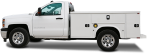 |
Stationary truck |

|
Truck in motion |
Date Range Instructions:
Select a date range from one (1)
of the three (3) boxes
at the bottom of the page. Clicking on the white input field will display the calendar control.
After selecting the
available month/date then the page will refresh with the results. The selected date range will also
display an eye icon next
to the range name and that selection box will be fully colored. This is to help identify what range
is being presented.
The "next" and "previous" arrow buttons can be used at any time on any range to
jump ahead/back a range based on that range type.
(left arrow = previous, right arrow = next).
Custom Date Range:
You can set your Start Date and End Date in the URL
Click Here for Custom Date
Range